
With card fronts complete, it’s time to create an image for card backs and think about printing!
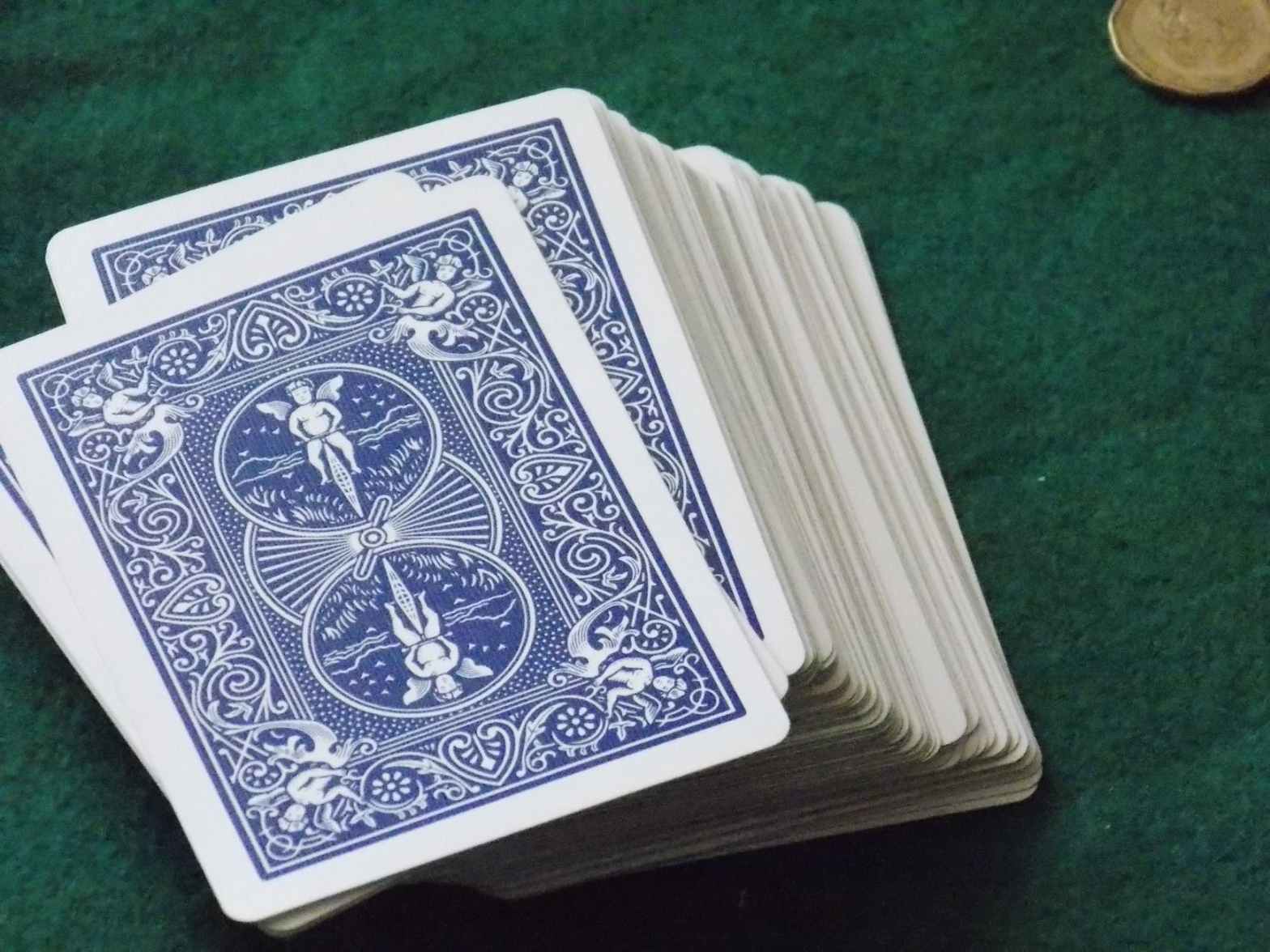
You are going to need a single image for card backs to tie your Ancestor Cards all together as deck of cards. The aspect ratio of this image needs to match the size of the card fronts (2.5″x3.5″). But beyond that requirement, anything goes. You card back can be a detailed illustration with no text, a solid color or gradient background with text, or anything in between!
- You could make an image in a PowerPoint slide now that you have some experience there.
- You could experiment with other creative software on your computer or online (Microsoft Paint and canva.com come to my mind).
- You could hold a design contest within the family to produce an image for these card backs!
If you were to give this deck of cards a name, what would it be? “[Surname] Family Heroes”? “The Hall of Fame-ily”? “Ancestor Cards”? “Playin’ with My Family”? “Getting to Know You”?
I would love to hear your ideas in the comments to this post!
When you have card fronts and backs ready to go…What are your plans for printing these cards?
Consider the following:
- What is your budget for this project/gift?
- How many decks of cards do you want to produce?
- How fast do you need them done?
- What equipment do you have at home for printing and possibly laminating?
- What quality of paper, ink, etc do you desire?
I briefly considered printing one deck of cards on my standard home printer. With some fiddling, I could probably figure out how to get four cards on a page using Microsoft Word and automating printing on both sides. Again, some fiddling would be necessary to ensure the card fronts and backs line up perfectly. And then of course there would be cutting involved, and then pulling out my little laminator. If all I desired was one set of relatively inexpensive cards ASAP, this might have been the way to go.
It may be possible to take a special project like this to a local printing shop. If you have success in doing so and want to drop recommendations in the comments, that would be great!
I decided that I wanted to produce more than a dozen decks to gift to my extended family. I was not particularly rushed. And frankly, coming out of the past year, I am still in online-shopping mode. So I searched for “custom playing cards” and found several companies with similar products and pricing including printerstudio.com, boardgamesmaker.com and makeplayingcards.com. (Remember to look for “poker card” size of 2.5″x3.5″ because that’s what the template for card fronts was set for).
There was a slight hiccup as I initiated the upload of my card front images to one of these websites. The site’s minimum requirements for image resolution was 822 x 1122 pixels (300DPI). The default settings on Microsoft PowerPoint exports jpegs at 96 DPI. Oh dear.
Thankfully, there was a remedy! I learned how to change the export resolution using the registry editor and set it to 300 DPI…My card then came out at 750 x 1050 pixels, still short of the printing website’s minimum requirements.
Another go at it, this time setting to 400 DPI...Success! My card front jpeg came out at 1000 x 1400 pixels!
I share this lengthy story in the hopes that it will save you time. Check out my video demo below if you need a walk-through on how to change PowerPoint’s export resolution. Then save each of your card fronts (a.k.a. slides), and upload to a printing site with confidence!
 connectthedotsgenealogy.com
One thought on “Ancestor Cards Step 3: Card Backs & Printing Choices”